
How Does a QR Code Menu Work? A Simple Guide for Restaurants
How a QR code menu works, in plain language: what the code actually holds, how guests scan it on iPhone and Android, whether an app or internet is needed, how to update the menu without reprinting, how to create and test codes, and what to check when a scan fails.
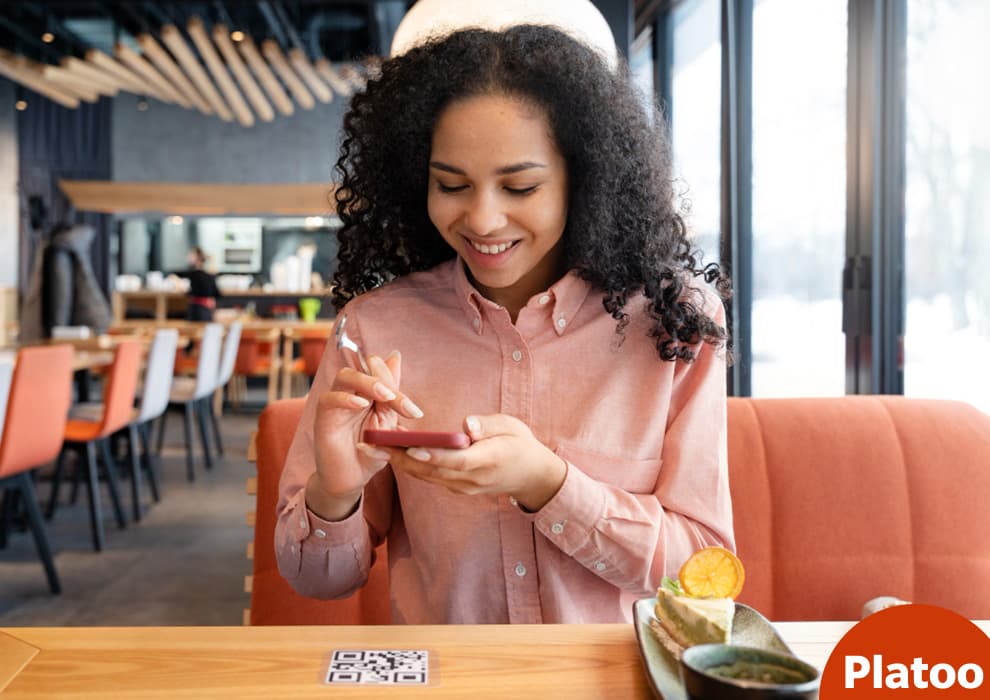
Typical scenario: A guest sits down at your café, points their phone camera at the QR code on the table and taps the link that appears. The phone opens a web page containing your menu. They can now browse the dishes and prices while deciding what to eat.
That is how a QR code menu works: the code provides a link, and the phone loads the menu in its browser. Think of the printed code as the entrance; the menu itself lives online.
For a restaurant owner, the practical question is what guests find after that scan. Keep dish names clear, prices easy to spot and the menu current. Before placing a code on your tables, scan it yourself and check whether you can comfortably read the menu on your phone.
What Is a QR Code Menu?
For a restaurant owner planning a QR code menu, picture the printed card and the digital menu as separate things. Decide what guests should see after scanning before you design the card.
Three Parts, Each Doing a Different Job
The QR code is a machine-readable barcode pattern that can encode a website link. See DENSO WAVE’s QR code FAQ.
The menu URL is the web address for the destination. Your browser opens that address to load the menu. See MDN’s explanation of URLs.
The web browser is your phone’s website viewer. Think of it as the window in which you read the menu. Platoo’s guest menu opens in that browser without a restaurant app installation. Platoo’s official walkthrough describes this flow.
A typical restaurant code contains a link, rather than dishes and photos. When planning your setup, keep the destination in mind: printing a clear code is only part of the job. You also need a menu address that guests can reach.
As an owner, record which address your table cards use and who manages the destination. Include that information in your handover notes so a staff change does not leave everyone guessing where the menu lives. Keep a copy of the address alongside your printable artwork. Before ordering table cards, ask someone unfamiliar with the setup to try the complete journey.
A Web Page or a PDF: The Destination Determines the Experience
You could choose a web menu or a PDF menu as the destination. To judge either option, open your proposed menu on a phone and try to choose breakfast as a guest would.
Can you read dish names comfortably? Find the price beside the right item? Return to the drinks without losing your place?
Use those questions to assess the menu you actually have. A successful scan gets a guest through the door; clear menu presentation helps them decide what to order.
How to Scan a QR Code Menu on Your Phone
At the table, start with the QR code printed beside you. If you have not used one before, ask a member of staff to show you the first scan. A brief demonstration can make the rest of the visit easier.
The Everyday Scan: Open, Point, Tap, Read
Use this sequence as a guide, adjusting the scanner choice to your phone:
- Open your smartphone camera. Keep the menu code in front of you while you find the camera or scanner you normally use. Ask for staff assistance if you are unsure where to begin.
- Point at the code. Aim to keep its edges visible.
- Tap the link prompt. Recognition displays a link; tapping opens it.
- Read the menu in your web browser. Start with the category you want, then inspect the dish details before deciding. If the text is difficult to read, ask staff to help you find the information you need.
For restaurant teams, demonstrate on the guest’s screen with their permission. Let them perform the taps themselves so they can repeat the action later. Avoid rushing straight to the dish list before they have seen where the link appears. Place the code within comfortable reach and offer a paper menu if the guest would prefer one.
A short staff demonstration script could be: Open your camera and point it here. When you see the link, tap it. Then you can browse the menu. I can help with any dish questions. Adapt the wording to the scanner the guest is using.
On iPhone and Android Phones
On iPhone, use Camera or Code Scanner, frame the code and tap its link. Apple’s QR scanning instructions show the supported options.
Android instructions vary by manufacturer. On Pixel, frame the whole code in Camera and tap the detected link; no photo is needed. Camera scan suggestions may need enabling. Quick Settings QR scanner and Google Lens are alternatives. See Google’s Pixel scanning guidance.
With Platoo, guests can browse and save chosen dishes, then get the waiter’s attention manually as usual—for example, by raising a hand—and communicate their order to staff. Use the saved dish selections as a reminder when speaking to the waiter. Platoo’s guest journey describes saving selections to dictate the order.
Do QR Code Menus Need an App or Internet Connection?
Before putting QR codes on tables, try opening the menu on a guest’s phone. You need an internet connection to load the online menu.
For Platoo, the menu opens in a phone’s web browser without installing a restaurant app. See Platoo’s guest access guide.
The practical distinction is between reading the code and retrieving the page. A phone can recognize a printed link while the online menu still fails to load. The code itself cannot provide an internet connection.
Plan for guests to use either Wi-Fi or mobile data. Platoo identifies mobile data as an option when venue Wi-Fi is unavailable. See Platoo’s menu overview.
For restaurant owners, the useful test is whether guests can actually reach the menu from their seats. Try your guest Wi-Fi, then try a phone using mobile data. If you welcome travelers, explain the Wi-Fi access clearly; their roaming availability and charges depend on their mobile service.
Keep public guest access separate from the owner’s private editor. Test the published menu link from a browser where you are signed out of your management account. Guests should reach the dishes, rather than an editing screen. Do not assume that every provider or separate ordering service has the same login requirements.
As a practical fallback, print a readable web address beside the code. A browser accepts a URL entered directly in its address bar. See MDN’s guide to URLs.
Also prepare for guests without a suitable phone, scanning capability or enough battery. Keep a paper menu available and let staff offer it without making guests explain their circumstances.
How to Update a QR Code Menu Without Reprinting the Code
Change the Menu Content, Keep Its Web Address
Illustrative example
You change a dish price and hide a sold-out item before service. Keep the same public menu address, publish your changes, then scan the printed code to check what guests see.
A stable URL keeps the menu’s web address unchanged. Ask whoever edits your menu to use its existing public address. See MDN’s guide to URLs.
For your update routine, treat the public link as the part to protect. Before editing, bookmark the guest-facing menu. Afterward, open that bookmark and check the changed dish, the surrounding category, and any description affected by the edit. For staff handovers, record who checked the guest page.
Platoo supports editing dishes and prices while retaining the QR code (Platoo’s editing guide). Unavailable items can also be hidden (Platoo’s menu overview).
Use your menu editor’s publishing controls where applicable. Checking only the editing screen leaves the guest experience unverified. Make published menu updates part of the handover to the floor team, so staff know which version they should describe.
Static and Dynamic Codes in Plain English
A printed QR pattern contains fixed data (DENSO WAVE’s QR documentation). For a static QR code containing your menu URL, the printed address stays fixed.
A static QR code can show an updated page or replacement PDF at the same URL; a dynamic code is not required. MDN explains web caching. The menu’s address and its contents are separate (MDN’s guide to URLs).
“Dynamic QR code” commonly labels a fixed redirect URL with a managed destination (static and dynamic QR codes). Redirects send browsers elsewhere (MDN’s redirect guide).
| Your planned change | What to check before proceeding |
|---|---|
| Edit menu content at its existing URL | Confirm the published page shows the change. |
| Replace a PDF at its existing URL | Check the public link opens the replacement file. |
| Change a managed redirect’s destination | Test where the printed code takes a guest afterward. |
| Move or delete the menu URL | Arrange continuity for the old address before removing it. |
When choosing a setup, ask who controls the printed link. Prefer a clear answer about access, hosting and link availability over an unexplained promise that a code will always work.
What Changes When the Menu Moves
If your menu moves, redirect its old URL, manage the redirect service, or reprint. Do not remove the old address until you have tested the chosen route from the printed material. Assign that responsibility to someone who can access both the menu and its hosting.
Keep that check on your migration checklist: table cards, takeaway inserts and other printed placements should all reach the intended menu.
An open page may need refreshing; caching can reuse stored responses (MDN’s caching guide). When checking an update, refresh the guest page. If it still looks wrong, first confirm that your edits were published and that you opened the intended public link.
How to Create a QR Code Menu for Your Restaurant
Start with the menu you intend to serve, then work toward a printed code that opens it reliably. Treat the first print as a proof: approve it at a real table before ordering or making the remaining copies.
Prepare and Publish the Menu Before Printing
- Gather the content. Collect dish names, current prices, descriptions and any photos you want to use. Ask the person responsible for the food to check the details. Keep a working copy so someone can resolve missing information before publication.
- Choose the guest destination. Decide which public menu page the code should open. Choose a stable URL, meaning an address you intend to keep using. For example, Platoo’s menu editor supports dish, price and photo edits; its menu options include multilingual menus. Check your chosen service against the content you prepared.
- Publish and inspect the guest view. Open the public link in a private browser window, without your owner account signed in. Confirm that guests can reach the intended menu without account access. Read through the published dishes and prices, and check that any photos appear beside the correct items.
- Generate and save the code. Use the published guest URL, then download the QR image for printing. Record both the destination and the saved image together. This gives whoever produces the cards a clear reference and reduces the chance of printing a draft or an owner editing link.
For a viewing-only menu, repeated copies of the same tested code are usually enough. Choose separate destinations only when guests actually need different menus. Printing a copy for each table does not, by itself, establish a table-specific ordering process.
Test the Actual Printed Code Where Guests Will Use It
Print a sample using the material and finish you intend to put on tables. Keep a clear border around the symbol: DENSO WAVE describes this margin as the quiet zone. It recommends a black code on white. Keep the code unobstructed when adding your restaurant name or instructions.
Try the proof on different phones, including an older device if available. Test from the guest’s seated position under the lighting used during service. Open the menu through the connection guests will actually use, and include mobile data in your checks. Judge the whole journey: a successful scan is only useful if the right menu then loads.
Illustrative example
A card looks clear beside the printer but catches a reflection under a dining-room lamp. Before printing more copies, adjust its position or finish and repeat the table test.
Label the card with a plain instruction such as “Scan to view the menu.” Place it where guests can see and reach it without moving tableware. Ask a staff member to try the process without coaching; use any hesitation to improve the wording or placement.
Give the Menu a Named Owner
Assign a person to update the menu and a backup for their days off. Agree who reports dish availability, approves price changes and checks published menu updates before service.
After an edit, open the public guest view again. Verify the changed item rather than relying on the menu editor preview. Make unavailable dishes part of the same routine; Platoo allows owners to hide unavailable items.
Inspect printed cards during table preparation. Replace damaged copies and periodically scan a card to check its destination. Brief staff on how to help guests open the menu, and use the paper-menu service routine described below when assistance is needed.
What Makes a Digital Restaurant Menu Easy to Use?
Open your menu on a phone and try choosing lunch before you judge its appearance. A digital menu should help guests find dishes, compare options and understand prices without asking someone to explain how the page works.
Check Readability on a Small Screen
Start with everyday tasks: find a drink, compare prices, read a dish description and tap a category with one hand. If these feel awkward, simplify the layout before adding more content.
Responsive design lets a page adapt to different screen sizes. Google’s responsive design guide explains this approach. For your web menu, check that text stays readable and images fit the screen when you turn the phone.
A PDF menu can work well on a phone, especially when its layout was designed for that purpose. A PDF prepared for printing may leave guests zooming into columns or scrolling sideways. Test the actual file instead of deciding from its format alone.
Use familiar category labels, such as “Drinks” or “Desserts.” Keep prices close to dish names, and make any size or portion choices easy to distinguish. Check mobile readability with the menu held at a normal reading distance.
Give Guests Useful Dish Information
Write descriptions that answer the questions guests are likely to ask: what comes with the dish, which ingredients define it, and whether a pictured side is included. Keep background stories separate from information needed to choose.
Platoo supports photos, ingredients and allergen information. Platoo’s feature overview lists these options. Your venue should enter and review that content against the dishes it actually serves.
Choose dish photos that clarify the offering. Check that names, descriptions, photos and prices tell the same story. Leave guests a clear way to ask staff when a detail needs confirmation; an image cannot answer every question.
Illustrative example
A guest sees a pasta photo with bread beside it. Adding “served with bread” to the description, if accurate, resolves uncertainty before the guest calls a server over.
Review Language Versions Before Guests Rely on Them
Platoo offers automatic menu translation, and owners can control translations. See its translation feature and owner controls.
For multilingual menus, ask someone who understands the target language to review dish names, ingredients and allergen notes. Pay particular attention to local names that might become confusing when translated literally.
After changing a dish, check its language versions too. Keep translated descriptions aligned with the venue’s reviewed information, and direct unresolved questions to staff.
Can I Use a QR Menu and a Paper Menu Together?
Keep a current printed copy within reach when a guest asks to see the menu. Yes, a QR code menu and a paper menu can sit alongside each other as parallel ways to read the same restaurant offer.
Offer the choice simply: “Would you prefer a printed menu?” A guest should not need to explain their battery level, phone access or reading preference. Make staff assistance available without turning the choice of format into a conversation about technology.
Typical scenario
A group sits down for dinner. Some guests scan the code; another takes a printed menu. Everyone discusses dishes together, then gives their order to the server as usual. The staff member answers questions regardless of which menu each person used.
For the restaurant, the useful habit is keeping both versions aligned. Assign one person to check dish availability and prices in the digital menu and printed copies whenever the offer changes. If a paper copy still lists an unavailable dish, have staff explain that before guests spend time choosing it.
Store the current paper menu backup where staff can reach it during service. Remove outdated copies from tables, host stands and storage spots so they do not return accidentally.
A simple staff handover helps: say what changed, which paper copies are current and what guests should be told. The aim is a consistent menu conversation, whichever format a guest chooses.
Why Is My QR Code Menu Not Working?
Check what happens on the guest’s phone before replacing the QR code. Does the camera show a link? Does tapping it open a page? Is that page the right menu? Each answer points to a different check.
Use this table as a starting point, then investigate the matching problem below. These are practical checks, not guaranteed fixes.
| What the guest sees | What to check first | What staff can try next |
|---|---|---|
| No link appears | Camera framing, lighting and the printed code | Help scan another copy or offer the printed menu address. |
| A link appears, but no menu loads | Destination address and internet connection | Try the address directly and compare another device. |
| The menu opens with old or wrong information | Published content and the code’s destination | Refresh, check the public page and report any mismatch. |
No Link Appears: Check the Scan
Google’s scanning guidance recommends steady framing, good light, a clean lens and avoiding glare. Pixel users can check Camera scan suggestions or try the Quick Settings scanner.
Ask the guest to frame the whole square. Inspect the table card for stains, scratches or folds; compare it with an undamaged copy. Try a different position if a shiny surface reflects light into the camera.
Keep the border clear: the quiet zone is an unprinted margin around the symbol, as explained by DENSO WAVE. Its printing guidance recommends black on white and warns that overlaid artwork or deformation can impair scanning.
For restaurant signage, place the code where guests can comfortably aim their phones. Test the actual printed card before putting copies on tables.
A Link Appears, but the Menu Does Not Load
Check that the displayed address matches your intended public menu URL. Then check the phone’s internet connection and whether the guest Wi-Fi requires a sign-in page.
Print a readable fallback address beside the code. A browser can open a URL entered in its address bar, as MDN explains. Try that address directly, then on another connected device.
If the problem persists, contact the menu or hosting provider with the affected URL and a description of the error. Offer staff assistance and the paper-menu option discussed above while investigating.
The Menu Opens with Old or Wrong Information
Compare the public page with the menu you intended to publish. Check the code’s destination and any active-menu selection available in your service.
Try refreshing. Browser caching can reuse stored responses. If the mismatch remains, send the provider the public URL and the specific dish or price that differs.
Related reading
QR Code Menu FAQ
Keep the printed code, but check its destination occasionally. A static QR code retains its encoded information; the menu still depends on hosting and link availability. Before renewing a service or moving your website, ask whether the public menu address will remain accessible. Add that address to your records so you can test it directly.
Print identical copies when every table should see the same menu. Separate codes become relevant if your chosen service uses table identifiers for a specific workflow; confirm that requirement before printing. Label the physical stands for staff inventory if useful, but avoid implying that a viewing code tells staff where a guest is sitting.
Copy the menu address into a message, booking confirmation or website button. A browser can open a URL directly. Open the shareable menu link outside your owner account before distributing it. Use a clear label such as “View our menu” so recipients know what they will open.
Update the content at the maintained destination and keep a stable URL. Platoo keeps the QR code unchanged after ordinary menu edits. For seasonal switches, ask your provider how its menu selection works. Preview the guest view before announcing the change, and check that leftover seasonal items do not confuse customers. Treat switching separate menus as a feature to verify.
Show your saved choices to staff when you are ready. In Platoo, guests save dishes, get the waiter’s attention manually as usual, and communicate their order to staff. Saving is a personal selection step. Confirm quantities and any requested changes aloud, so the staff member can clarify your choices before taking the order.
Check what guests at each location will see before reusing the artwork. A shared destination is appropriate only when its content clearly serves those venues. If menus differ, give each venue an unmistakable route to its own dishes. Platoo’s multi-venue management depends on the plan. Verify your arrangement with the provider before distributing codes across locations.
Sources: FAQ | QRcode.com | DENSO WAVE · What is a URL? – Learn web development | MDN · Scan a QR code with your iPhone or iPad – Apple Support (UK) · Scan QR codes with your Pixel phone – Pixel Phone Help · HTTP caching – HTTP | MDN · Redirections in HTTP – HTTP | MDN · Point for determining the code area | QRcode.com | DENSO WAVE · Introduction to responsive design | web.dev · How to Edit a QR Code Without Reprinting | Bitly